Multi-Slot Clipboard Manager for Windows
Copy up to 10 items, paste any of them instantly with a hotkey, and capture screenshots – all from one lightweight app.
Windows 10+ (x64) · Available as Store App or Single-file EXE
How It Works
- Copy anything as usual (Ctrl+C) – each copied item is automatically saved into a numbered slot.
- Paste a specific slot using a hotkey (default: Ctrl+1 through Ctrl+0).
- Take a screenshot with a global hotkey (default: Ctrl+Alt+PrintScreen) – choose full screen, active window, or drag-to-select a region.
When all slots are full, the oldest unpinned item is replaced. Pin important items to protect them from being evicted.
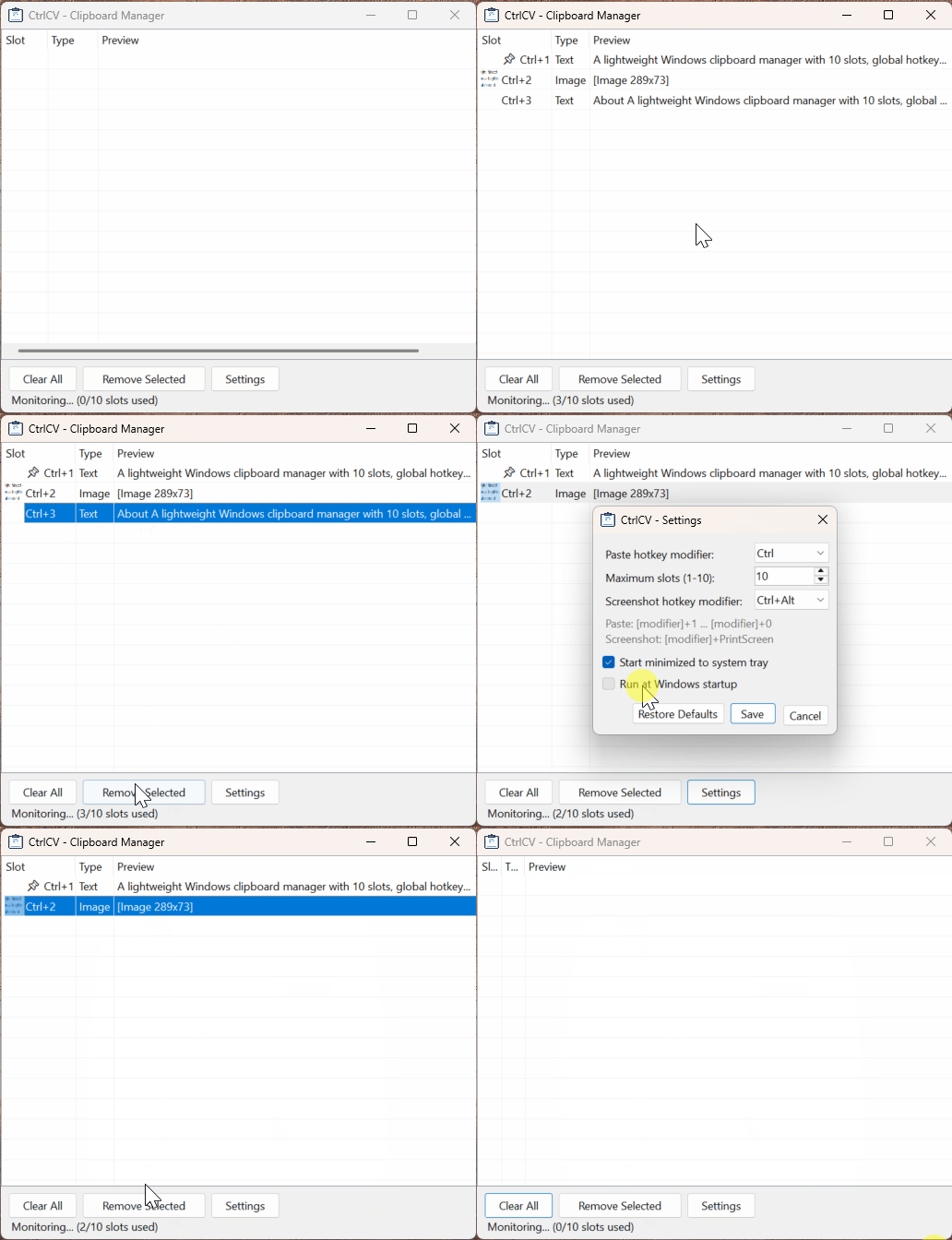
Features
| Feature | Description |
|---|---|
| Multi-slot clipboard | Stores up to 10 text and image items with FIFO rotation |
| Pin items | Protect important items from being replaced |
| Global hotkeys | Paste from any slot in any application |
| Screenshot tool | Full screen, active window, or region selection |
| Extract text (OCR) | Right-click any image slot to extract text, or enable automatic extraction after every screenshot |
| Context menu | Pin, remove, or clear items directly from the list |
| Multi-select | Select multiple items with Ctrl+click or Shift+click, then delete in one go |
| Configurable | Change hotkey modifiers, max slots, startup behavior |
| System tray | Minimize to tray with quick-action context menu |
| DPI-aware | Scales correctly across different displays and scaling settings |
| Single instance | Prevents multiple copies from running |
| Start with Windows | Optional auto-start at login |
| Check for updates | Optional auto-update for the GitHub release (completely removed from the Store version) |
| Floating widget | Always-on-top toolbar with slot thumbnails, drag-and-drop, hover preview, compact mode, and auto-hide |
| Pinned persistence | Pinned items and settings survive restarts, stored locally via LiteDB (large images via GridFS) |
Default Hotkeys
| Shortcut | Action |
|---|---|
| Ctrl+1 … Ctrl+9 | Paste slot 1 through 9 |
| Ctrl+0 | Paste slot 10 |
| Ctrl+Alt+PrintScreen | Take a screenshot (opens mode picker) |
Hotkey modifiers are configurable in Settings (Ctrl, Ctrl+Alt, or Ctrl+Shift).
Screenshot Modes
When you press the screenshot hotkey, a context menu appears with three options:
- Full Screen – captures all monitors
- Active Window – captures the currently focused window
- Select Region – opens a crosshair overlay where you drag to select an area
Captured screenshots are stored in the next available slot and placed on the clipboard.
After capturing a screenshot, right-click the image slot and select Extract Text to run OCR and copy the recognized text to the clipboard. The extracted text is also stored as a new slot.
To skip the manual step, enable Auto-extract text from screenshots (OCR) in Settings. When enabled, every screenshot is automatically run through OCR in the background and the recognized text is added as a new slot and placed on the clipboard. The right-click Extract Text option stays available for any image copied from elsewhere.
Settings
| Setting | Default | Description |
|---|---|---|
| Paste hotkey modifier | Ctrl | Modifier for paste hotkeys (Ctrl, Ctrl+Alt, Ctrl+Shift) |
| Maximum slots | 10 | Number of clipboard slots (1-10) |
| Screenshot hotkey modifier | Ctrl+Alt | Modifier for screenshot hotkey |
| Start minimized | Off | Launch minimized to system tray |
| Run at Windows startup | Off | Auto-start when you log in |
| Auto-extract text from screenshots (OCR) | Off | Run OCR automatically after every screenshot |
| Enable floating widget | Off | Show the floating clipboard toolbar |
| Compact mode | Off | Use small color-coded circles instead of thumbnails |
| Widget opacity | 85% | Opacity of the floating widget (20-100%) |
| Auto-hide | On | Fade the widget when the mouse leaves |
| Auto-hide delay | 3s | Seconds before the widget fades (1-10) |
| Widget orientation | Horizontal | Horizontal or vertical layout |
Settings and pinned items are saved to %APPDATA%\CtrlCV\CtrlCV.db (a LiteDB file). A one-time migration moves any existing settings.json into the DB and renames the old file to settings.json.migrated-<timestamp>.
Persistence
- Pinned items survive restart. Text and images you pin are written to
%APPDATA%\CtrlCV\CtrlCV.dbon change (debounced) and rehydrated on the next launch. - Unpinned items are session-only. The regular clipboard history stays in memory and is cleared when the app exits – pin anything you want to keep.
- Large images are handled. Images up to 32 MB are persisted. Small images (< 1 MB PNG) are embedded in the document; larger images go into LiteDB’s GridFS bucket so the main document stays compact.
- Text cap. Pinned text over 5 MB stays in memory for the session but is not saved to disk.
- Clear All keeps pinned items. The Clear All button and menu only remove unpinned items; pinned items (and their on-disk copy) are preserved. To delete a pinned item, right-click it and choose Remove.
- Wipe on demand. Settings -> Forget Persisted Pins deletes every pinned item stored on disk in one click.
Do not pin passwords, tokens, private images, or any other confidential data. Use Settings -> Forget Persisted Pins to wipe the on-disk copy.
Requirements
- Windows 10 or later (x64)
- .NET 8 Desktop Runtime (LTS) – not needed if using the self-contained single-file EXE
Build from Source
dotnet build
dotnet run
Or open CtrlCV.sln in Visual Studio 2022 and press F5.
To build the Microsoft Store (MSIX) compliant version, use the ReleaseStore configuration, which physically strips out the manual auto-updater and ensures the app requires no internet capabilities:
dotnet build -c ReleaseStore
To produce the actual .msixupload bundle that Microsoft Partner Center accepts (x64 + ARM64, signing deferred to the Store), use the wrapper script:
.\scripts\build-store-package.ps1                  # build using the manifest's current version
.\scripts\build-store-package.ps1 -BumpRevision    # bump the 4th version component first
.\scripts\build-store-package.ps1 -BumpRevision -RunWack  # also run the Windows App Certification Kit
The script wraps an MSBuild /restore invocation on CtrlCV.Package.wapproj (with Configuration=ReleaseStore, AppxBundlePlatforms="x64|arm64", UapAppxPackageBuildMode=StoreUpload). It is preferred over the Visual Studio “Create App Packages” wizard, which has a known ordering bug on .NET 8 + WAP. The output .msixupload lands in AppPackages\ and can be uploaded directly on the Partner Center submission’s Packages page. See the README for the flag-by-flag explanation and the Windows App Certification Kit (WACK) details.
To create a self-contained single-file EXE:
dotnet publish -p:PublishProfile=SingleFileExe
The output is a single CtrlCV.exe in bin\Publish\ (~75 MB). Copy it to any Windows 10+ (x64) machine and run – no installation or runtime required. The bundle is Brotli-compressed; the first launch extracts native libraries to %LOCALAPPDATA%\Temp\.net\CtrlCV\ and caches them for subsequent runs.
Known Limitations
- Hotkey conflicts – Global hotkeys may override shortcuts in other apps. Change the modifier in Settings to avoid conflicts.
- Elevated apps – Pasting into apps running as Administrator requires CtrlCV to also run as Administrator.
- Only pinned items persist – Unpinned clipboard history is session-only and is lost when the app exits. Pin items you want to keep.
- Unencrypted DB – See the Security note above: don’t pin secrets.
- Text and images only – Other clipboard formats (files, rich text, etc.) are not captured.
- OCR accuracy – Text extraction uses the built-in Windows OCR engine. Accuracy depends on image quality and installed Windows language packs.
License
This project is licensed under the GNU General Public License v3.0.
Get it from Microsoft Store Download Latest Release
Windows 10+ (x64) · Available as Store App or Single-file EXE
Made by keatkean · Source Code · Releases · Privacy Policy